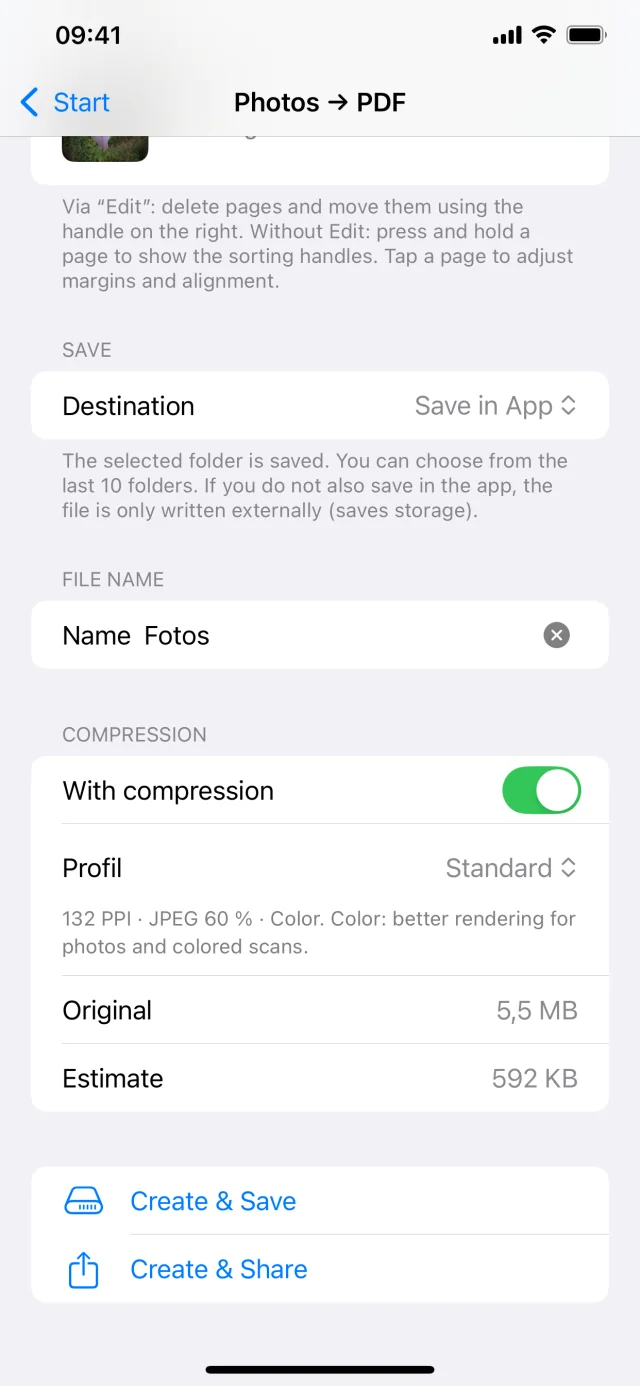
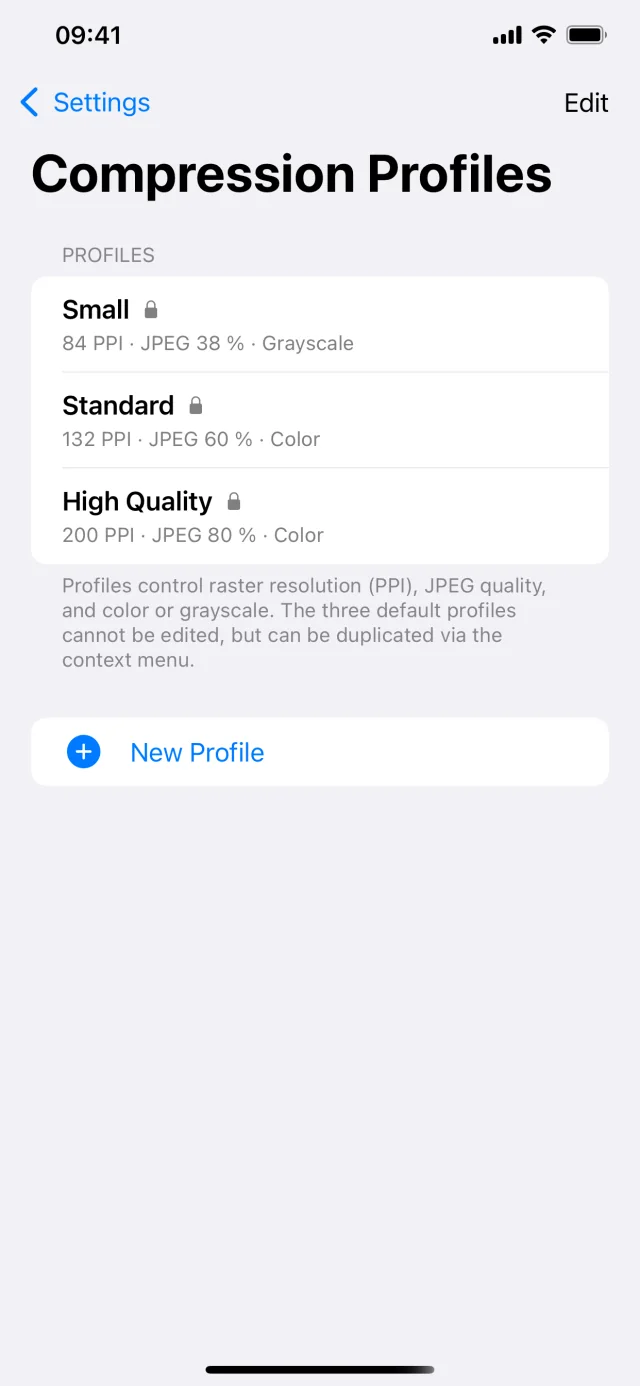
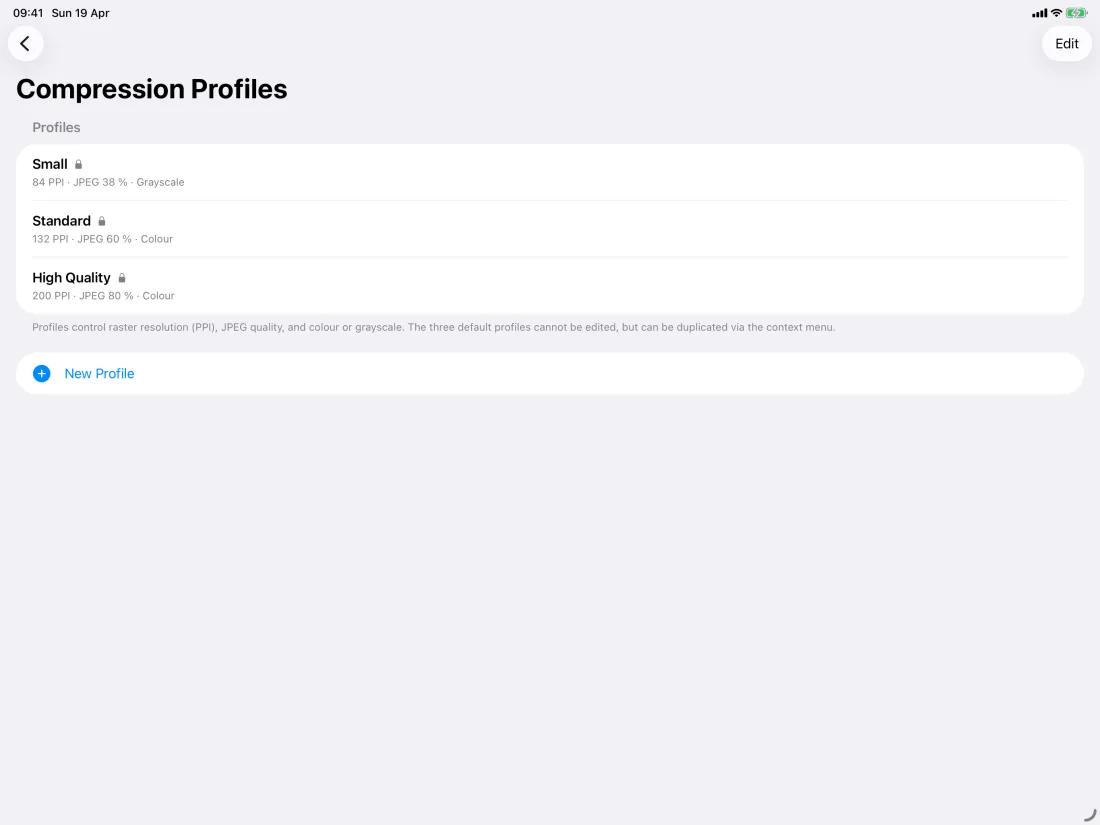
Profiles define settings such as raster resolution (PPI), JPEG quality, and color or grayscale. They are used in features where compression is enabled, for example Compress, OCR, Scan, Photos → PDF and PDF Pages, depending on the settings there.
When scanning, you use the document camera: multiple pages, perspective correction, and typically clear document edges. In Photos → PDF, you select images from your photo library and create a PDF from them, ideal if you already have photos.
OCR recognizes text in scanned or photographed pages and adds a searchable text layer to the PDF. This lets you highlight text in preview and search it in other apps. Recognition also runs directly on the device.
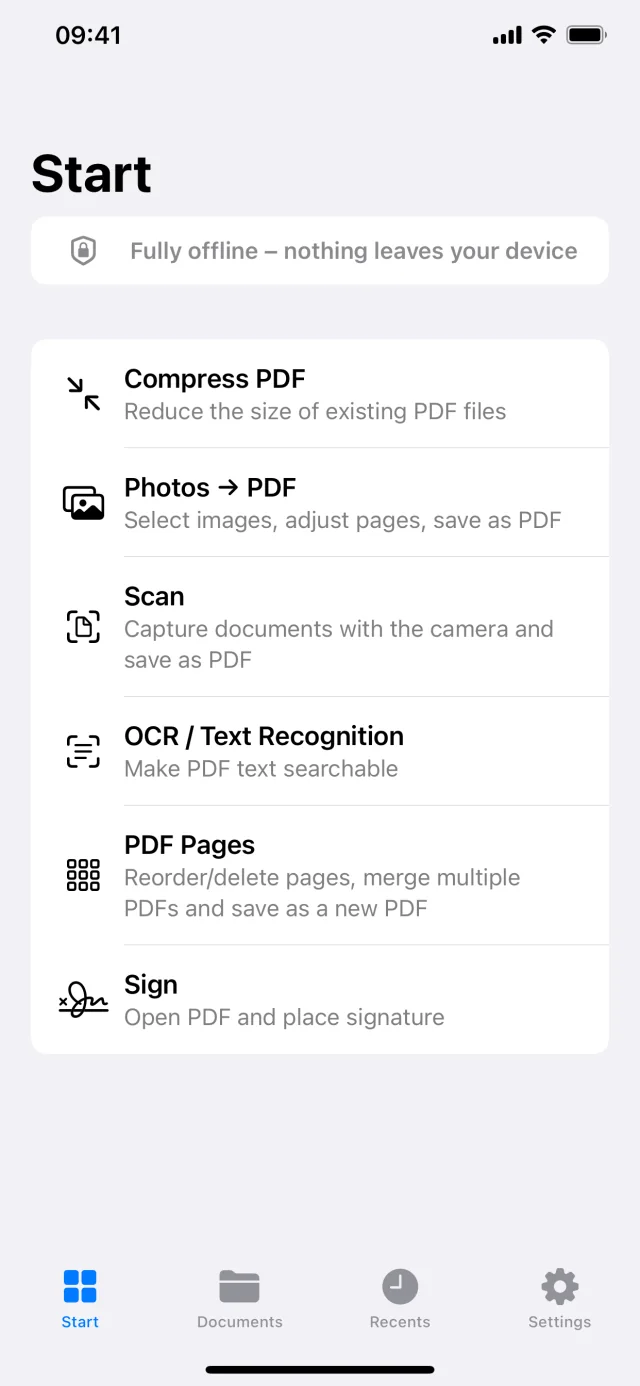
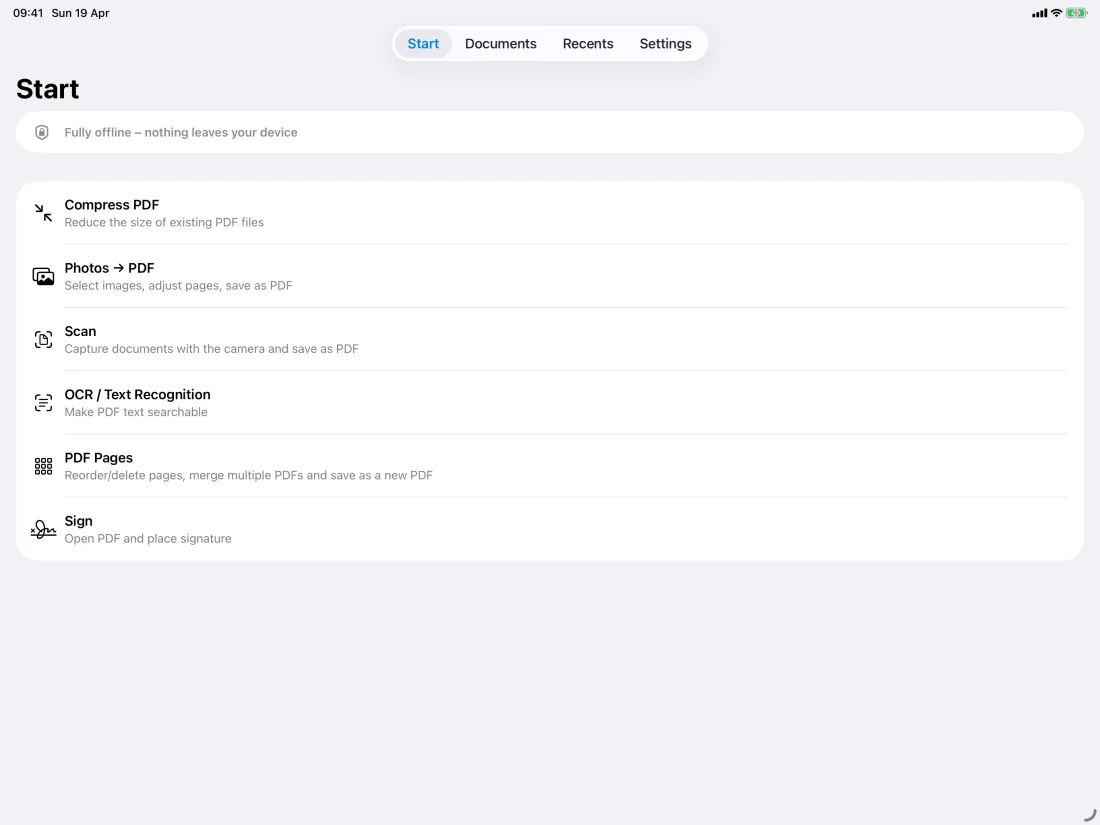
Scan documents with the camera, turn images into PDFs, reduce file size with flexible compression profiles, add OCR for searchable text and place signatures in existing PDFs.
Everything works offline on your device. Your documents are not uploaded to a cloud service.
Scan documents and export as PDF
Create PDFs from images
Compress existing PDFs
Make scanned PDFs searchable with OCR
Reorder, delete and merge PDF pages
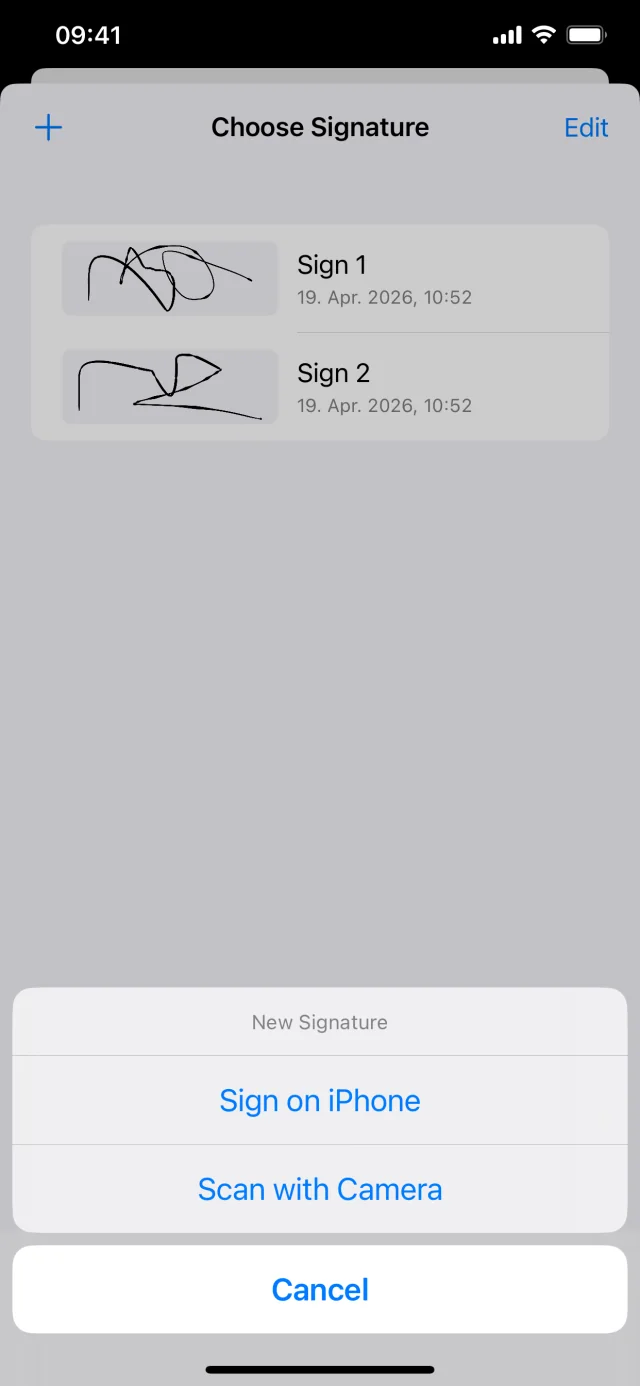
Add signatures to PDFs
Save locally, share or export to a folder
Sign PDFs
Add signatures to PDFs
Save locally, share or export to a folder
Everything works offline on your device. Your documents are not uploaded to a cloud service.
Features · iPhone
Features · iPad
Does the app work online or offline?
All features run on your iPhone or iPad. No internet connection is required, and your PDFs and images are not uploaded to any server.
Where are the new PDFs saved?
In each feature, you choose a destination when saving: for example in the app under Documents, by sharing to another app, or in a folder you select in the Files app. This keeps you in control of where the file is stored.