
PDF - Shrink & Scan & OCR · iPhone · iPad
Compress PDFs on iPhone and iPad
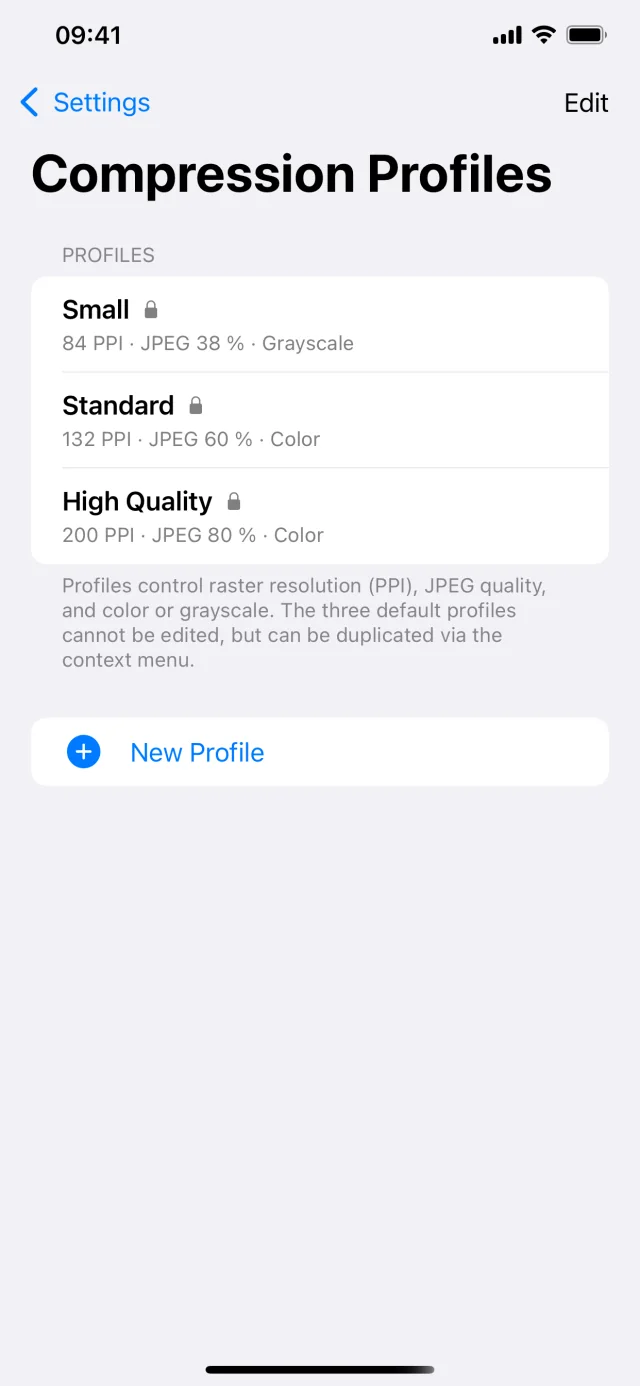
Profiles define settings such as raster resolution (PPI), JPEG quality, and color or grayscale. They are used in features where compression is enabled, for example Compress, OCR, Scan, Photos → PDF and PDF Pages, depending on the settings there.
Scan documents with the camera, turn images into PDFs, reduce file size with flexible compression profiles, add OCR for searchable text and place signatures in existing PDFs.
- Compress existing PDFs
- Save locally, share or export to a folder
What does “Compress PDF” do?
Each page is rasterized using your compression profile and compressed as JPEG to keep the output reliable, even for mixed content. PDFs with lots of text or vector graphics often become only slightly smaller or may even grow larger than the original because there was hardly any image data to reduce.
Why does my PDF barely get smaller?
If a file is already heavily compressed or contains almost only text and vectors, there is little room left to reduce its size. PPI, JPEG quality and grayscale also matter: lower values create smaller files, but may affect the appearance more strongly.
What are compression profiles?
Profiles define settings such as raster resolution (PPI), JPEG quality, and color or grayscale. They are used in features where compression is enabled, for example Compress, OCR, Scan, Photos → PDF and PDF Pages, depending on the settings there.
Where can I find compression profiles?
Under Settings → Compression Profiles. There you can use default profiles, create your own profiles, duplicate them, and delete them.